Show Keys Pressed in a Chat-Style Overlay on Mac
Use KeyScreen's Show All Keys mode to show typed text, keyboard shortcuts, special keys, and mouse clicks in chat-style bubbles on your Mac.
KeyScreen has a new mode for anyone who teaches, records tutorials, builds product walkthroughs, or streams from a Mac: Show All Keys. It turns your typing into a clean, chat-style overlay so viewers can follow every word, shortcut, special key, and mouse click as it happens.
Instead of only flashing individual shortcuts, Show All Keys creates a running chat-style view of your input. The overlay can sit in a predefined screen position or be dragged exactly where it fits your recording.
Show All Keys keeps a readable trail of typed text, shortcuts, and clicks in floating chat-style bubbles.
A better way to show text as a conversation
When someone is watching a tutorial, they often need more than the final result. They need to see how you got there. Did you type a space? Delete a word? Hit Backspace? Use a keyboard shortcut? Click the mouse?
Show All Keys makes those moments visible without forcing viewers to guess from tiny cursor movements or a blinking text caret. Each input appears in a soft bubble, then older entries fade away so the screen stays calm.
This is especially useful when you are recording:
- Coding tutorials where every character matters.
- Design walkthroughs where shortcuts and clicks happen quickly.
- App demos where typed commands or search queries need to be visible.
- Training videos where beginners need to see the exact input sequence.
- Live streams where viewers join mid-flow and still need context.
Two ways to display every key press
Show All Keys includes two display modes: Typed Text and Keystrokes. They share the same chat-style overlay, but they answer slightly different teaching needs.
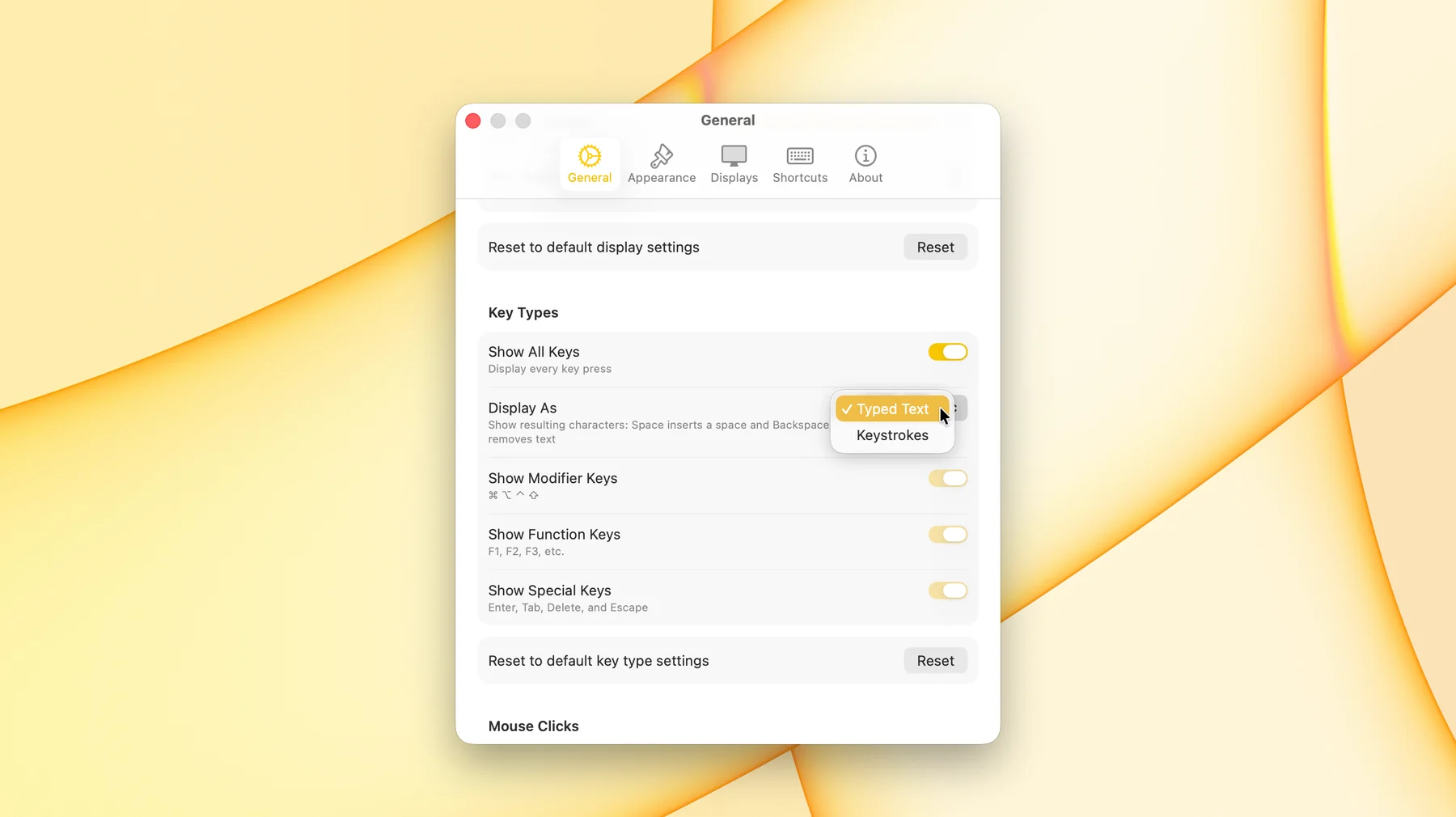
Enable Show All Keys, then choose whether KeyScreen should display resulting text or raw keystrokes.
Typed Text mode: show the text as it is written
Typed Text mode is for moments where readability matters most. As you type, KeyScreen shows the resulting characters as natural text. Space inserts a real space. Backspace removes text. Delete behaves like Delete. Keyboard shortcuts and mouse clicks still appear, so the viewer sees both the written text and the actions around it.
That makes Typed Text mode feel less like a diagnostic key logger and more like an on-screen conversation. It is ideal when you want viewers to read the phrase, command, URL, filename, search query, prompt, or code snippet you are entering.
Typed Text mode shows the resulting text, which is helpful when the final words are what viewers need to follow.
Keystrokes mode: show the exact keys you pressed
Keystrokes mode is for precision. Instead of converting everything into resulting text, KeyScreen shows the actual key presses. If you press Backspace, viewers see the Backspace symbol. If you press shortcuts like ⌘, ⌥, or arrow keys, those keys appear as keystrokes.
Use Keystrokes mode when the mechanics of the keyboard matter: shortcut lessons, debugging input behavior, explaining navigation keys, or teaching workflows where the exact key press is the point.
Keystrokes mode shows the literal key presses, including special keys and shortcut symbols.
Typed Text vs Keystrokes
In practice, the choice is simple:
| If you are recording... | Use this mode |
|---|---|
| Writing a sentence, prompt, search query, command, or code snippet | Typed Text |
| Teaching shortcuts, navigation keys, modifiers, or special keys | Keystrokes |
| Explaining both text and actions around it | Typed Text |
| Showing exactly why an input changed | Keystrokes |
Move the chat view wherever it belongs
Every screen recording has a different layout. Sometimes the input overlay belongs at the bottom. Sometimes it needs to live near the side, away from a terminal, editor, canvas, browser toolbar, or presentation controls.
Show All Keys gives you both options: use predefined positions for quick setup, or drag the chat view anywhere on the screen. That makes it easier to keep the overlay visible without covering the thing you are teaching.
Built for screen recordings, demos, and live teaching
The best tutorial overlays do not ask for attention. They give just enough context at the exact moment viewers need it. Show All Keys is designed for that balance: readable bubbles, fading older entries, support for shortcuts and clicks, and a movable view that adapts to the scene.
If you create Mac tutorials, product demos, courses, onboarding videos, or live streams, Show All Keys helps your audience understand the invisible part of your workflow: the typing.
You can download KeyScreen from the Mac App Store or purchase it directly from our website.